 The Run List
Setup guide
One-time setup, about two minutes. You'll need a Spotify Premium account, and a computer or tablet for the middle part (step 2) — Spotify's dashboard doesn't cooperate with phones.
1 · Install the app
Open app.therunlist.app in your phone's browser, then:
iPhone (Safari)
- Tap the Share button (the square with an arrow).
- Scroll down and tap Add to Home Screen, then Add.
Android (Chrome)
- Tap the ⋮ menu in the top corner.
- Tap Add to Home screen (or Install app), then confirm.
Desktop
Just use it in the browser — or click the install icon at the right end of the address bar if your browser offers one.
2 · Create your Spotify app
The Run List connects to Spotify through an app registration that belongs to you — Spotify no longer lets one shared registration serve everyone (they cap each at 5 users). Creating your own is free and private to you. It's for your own personal, non-commercial use — building playlists for your own runs.
- Log in with your normal Spotify account. First time here, Spotify may ask you to accept its developer terms.
-
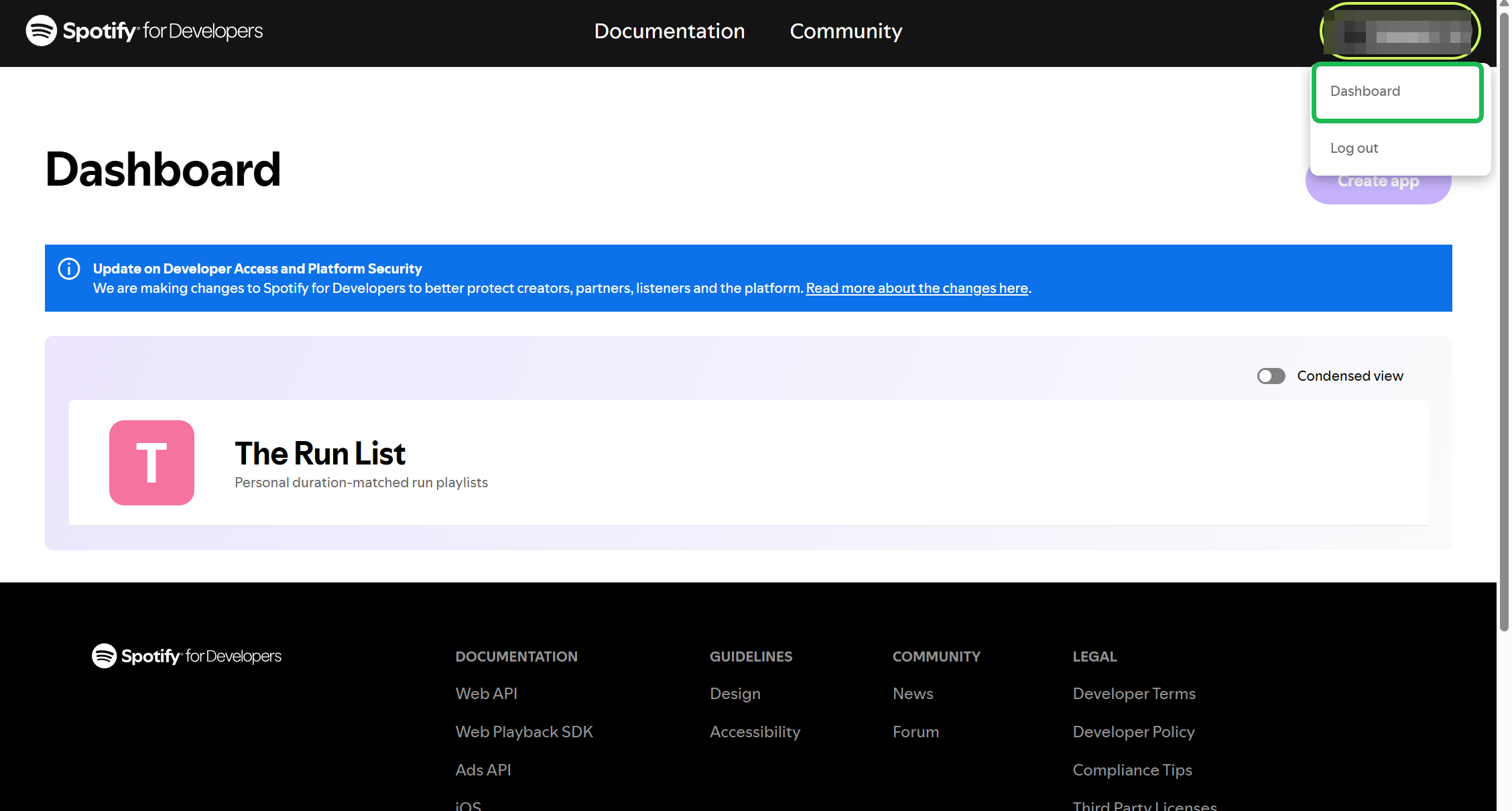
After logging in, open the account menu (top right) and choose
Dashboard:
-
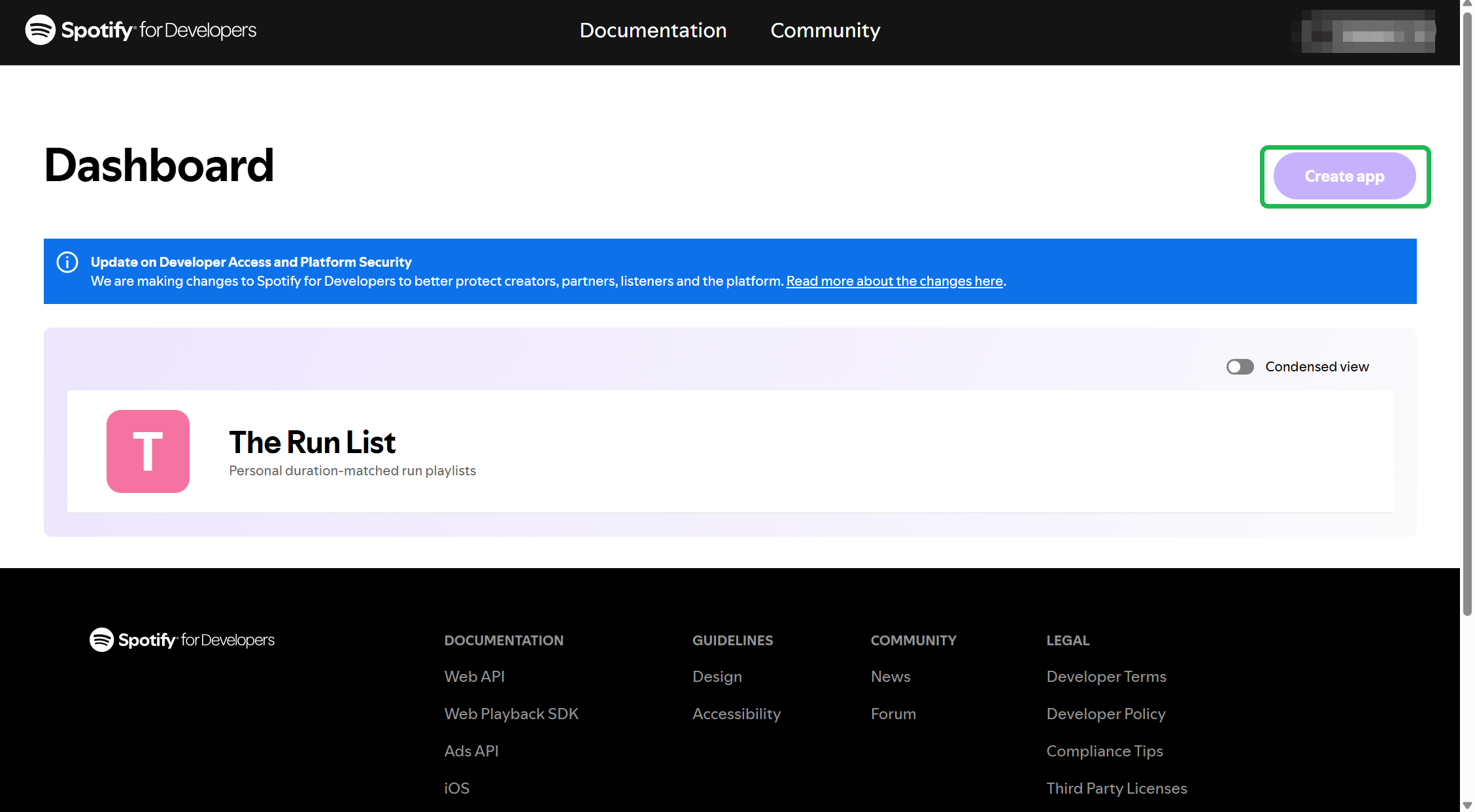
On the Dashboard, click Create app:
-
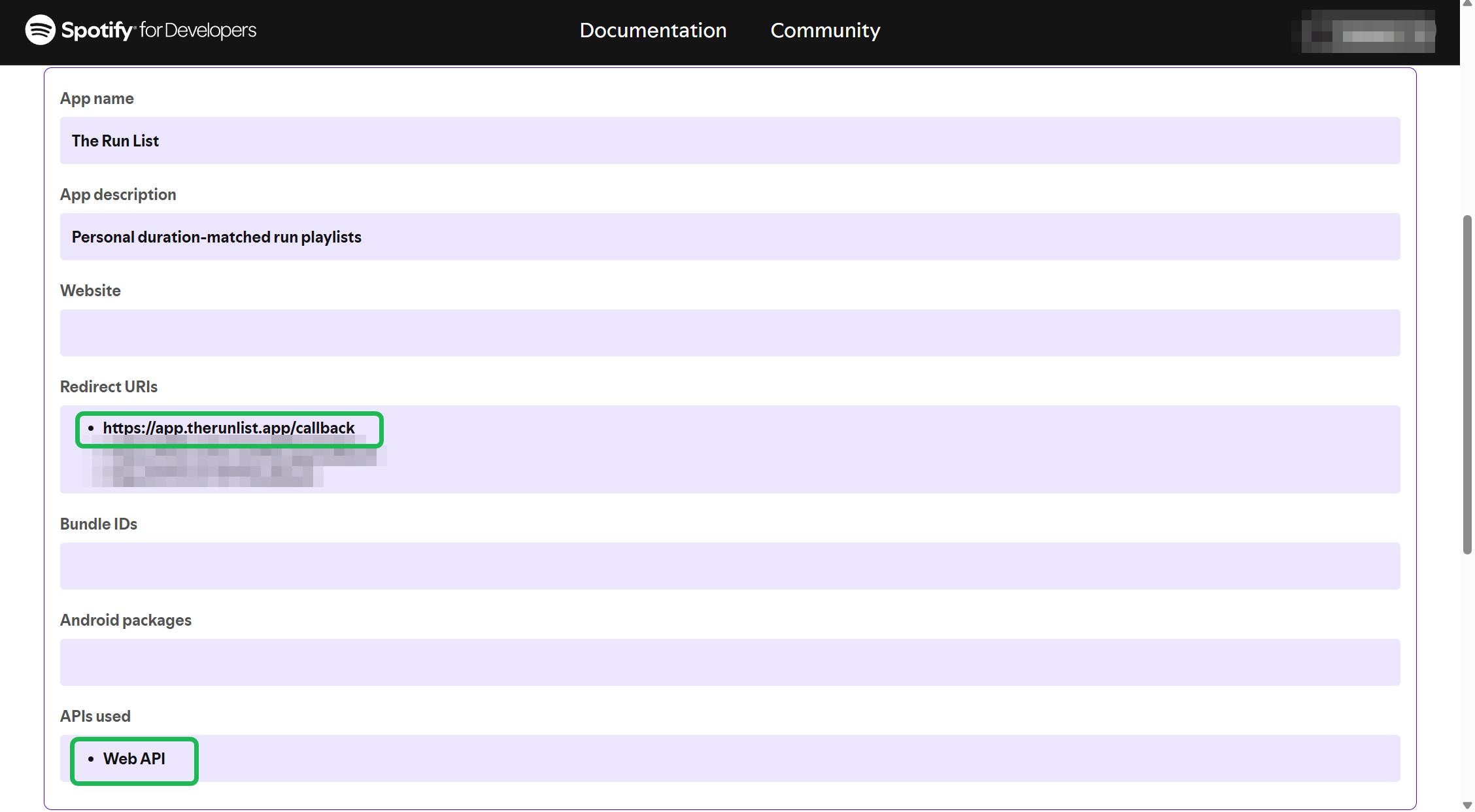
Fill in the form:
- App name and description — anything you like (e.g. “The Run List”).
- Redirect URI — exactly this, character for character:
https://app.therunlist.app/callback - Tick Web API, agree to the terms, and save.
3 · Connect
-
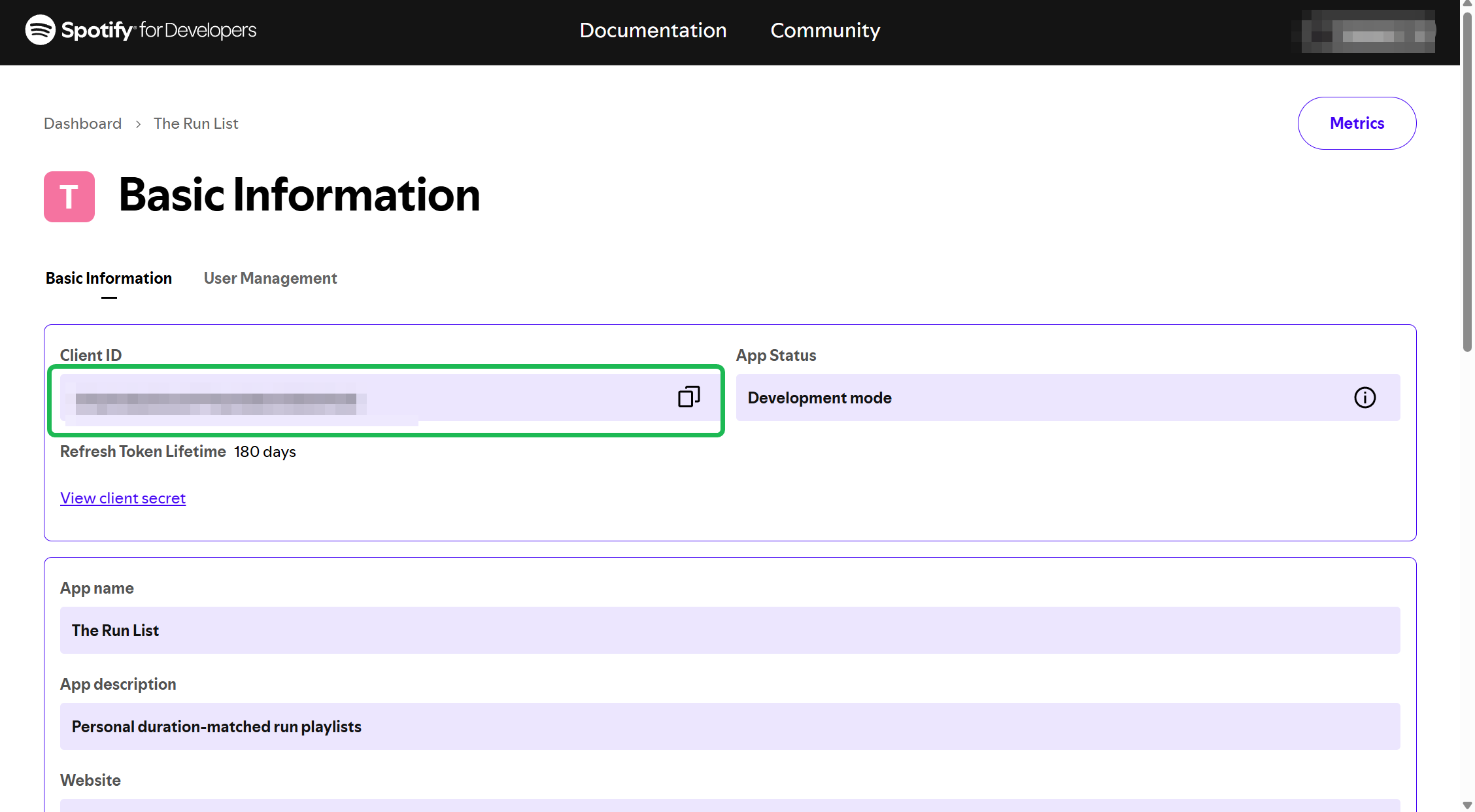
On your new app's page in the dashboard, copy the
Client ID:
-
Back in The Run List, paste it into the final setup step and tap
Connect to Spotify:
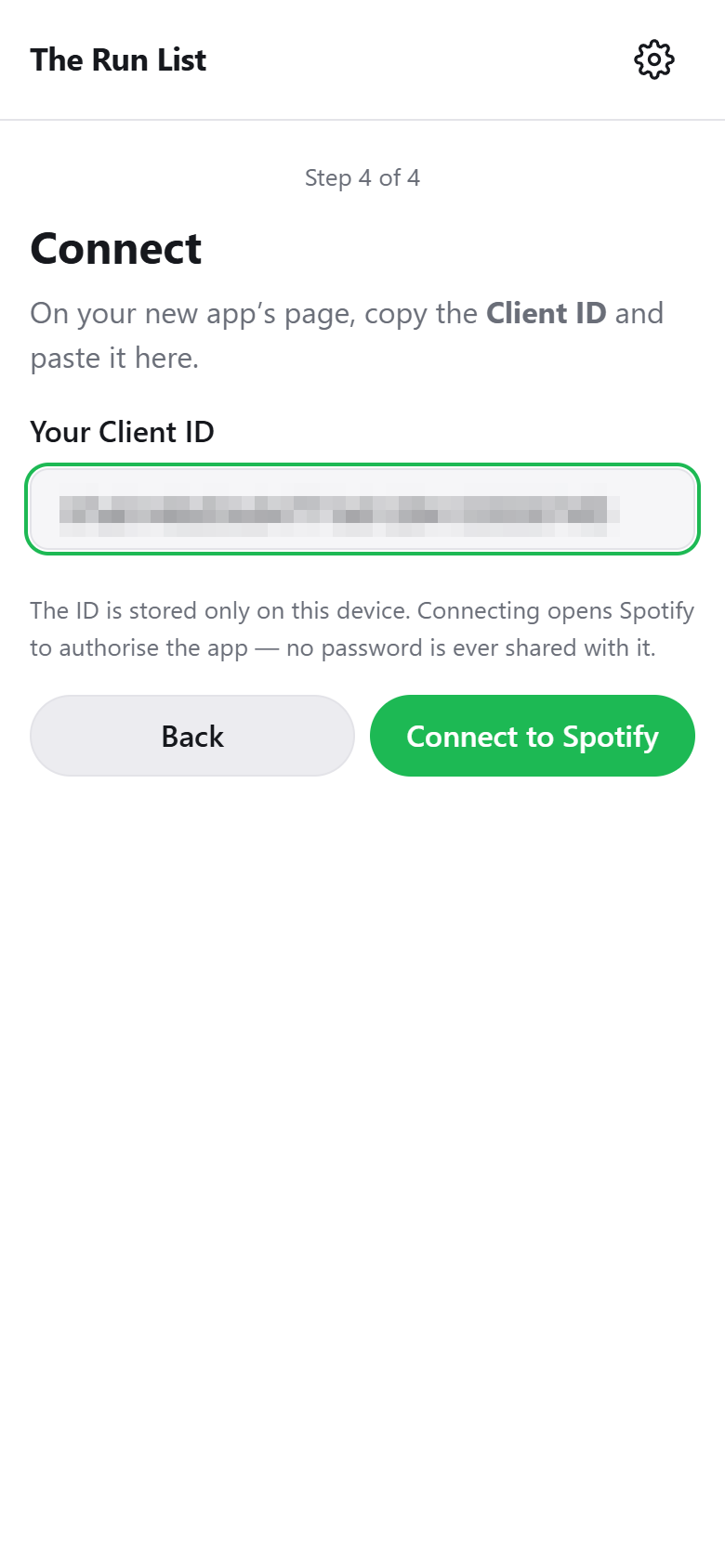
- Log in on Spotify's page and approve the permissions. That's it — you'll land back in the app, connected. From now on it signs in silently.
Troubleshooting
- There's no “Create app” button on the dashboard at all
- You're almost certainly on a phone. Spotify's dashboard doesn't show that button in its empty state on phone-sized screens, so it's missing for exactly the people creating their first app. Open the dashboard on a computer or tablet and it'll be there. (Odd but true: once you have one app, it shows up on phones fine.)
- “Create app” is greyed out, or mentions new integrations being on hold
- Spotify occasionally pauses new app registrations platform-wide, showing a note like “New integrations are currently on hold.” That's on Spotify's side — nothing to do with The Run List, and nothing either of us can do but wait. It has lifted after a few days in the past.
- “INVALID_CLIENT: Invalid redirect URI” on Spotify's page
- The Redirect URI in your Spotify app doesn't exactly match
https://app.therunlist.app/callback. Re-copy it — watch for missing characters or stray spaces — save, and try again. - “Spotify didn't recognise the Client ID.”
- Re-copy the Client ID from your dashboard (it's 32 letters and numbers). You can change it in the app under Settings → Change Client ID.
- “The sign-in didn't complete properly / expired.”
- Usually means the page was closed or reloaded mid sign-in. Just tap Connect to Spotify again.
- “Your Spotify connection has expired.”
- Normal from time to time — reconnect and carry on.
- Spotify's login page looks zoomed-out or stretched on my phone
- Cosmetic, and outside the app's control — it works fine, and The Run List rights itself automatically a moment after you return.
- Everything worked but connecting still fails on a free Spotify account
- Spotify requires the owner of an app registration to hold Premium — with your own registration, that's you. See the FAQ.
- Some of my playlists are greyed out with a lock
- Spotify only shares the contents of playlists you own or collaborate on — followed and editorial playlists can't be used as sources. Copy their songs into a playlist of your own and use that.
Still stuck? Email hello@therunlist.app.